How to create an animated GIF
Animated gif’s can be created from still images.
To do this you WILL need to RESIZE YOUR IMAGES TO AN APPROPRIATE SIZE AND RESOLUTION FOR THE WEB…
For example 72 dpi, and 900 x 600 pixels, You can do this by selecting Image, Image size and set the dimensions above whilst selecting the Re sample option.
Load your images that you want to create an animation with. Import the images into the Photoshop file and organise the layers as the sequence that you want to animate. Layer 1, 2, 3, etc.
· Select Widow, Timeline,
· Select Create video time line
· Drag the images into the time line and adjust each clip duration to e.g. 5 frames
· Order the images in the sequence that you want to show.
· To test the animated gif you need to press the play button
· To loop the video you will need to select the “set the playback options button” and then press play.
· To save the animation you need to select File, Save for web.
At this point you need to ensure the animation is looped see the image below and that you have selected a gif file option and 128 dithered
My image
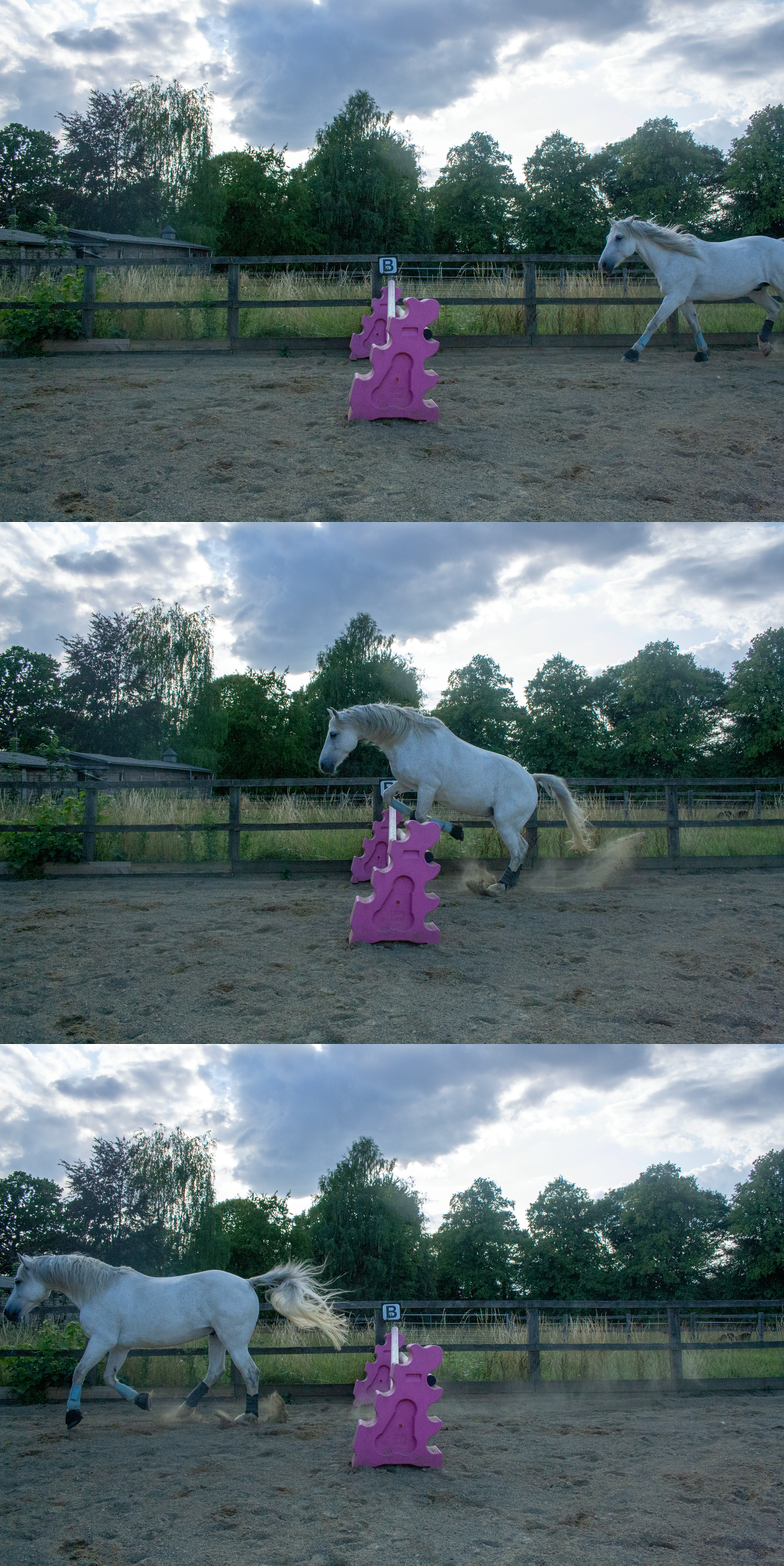
To take the images made in this GIF, I used a tripod, to make sure that the camera was kept still, reducing the risk of shake, and to make sure that the only movement in this specific GIF was the horse. I also used a fast shutter speed in order to capture these images, without movement blur.
To edit these images, I used photoshop, adjusting the colour balance, and the highlights.
I would like to keep exploring this technique before I decide whether or not I would like to use this in my work as I’m not sure if it would suit my style of photography.
 Kate Watson - A Level Photography